

We're pleased to announce that Ruleguard version 4.106.0 is now live!
This update contains the following changes:
Ruleguard Update 4.106.0
Summary
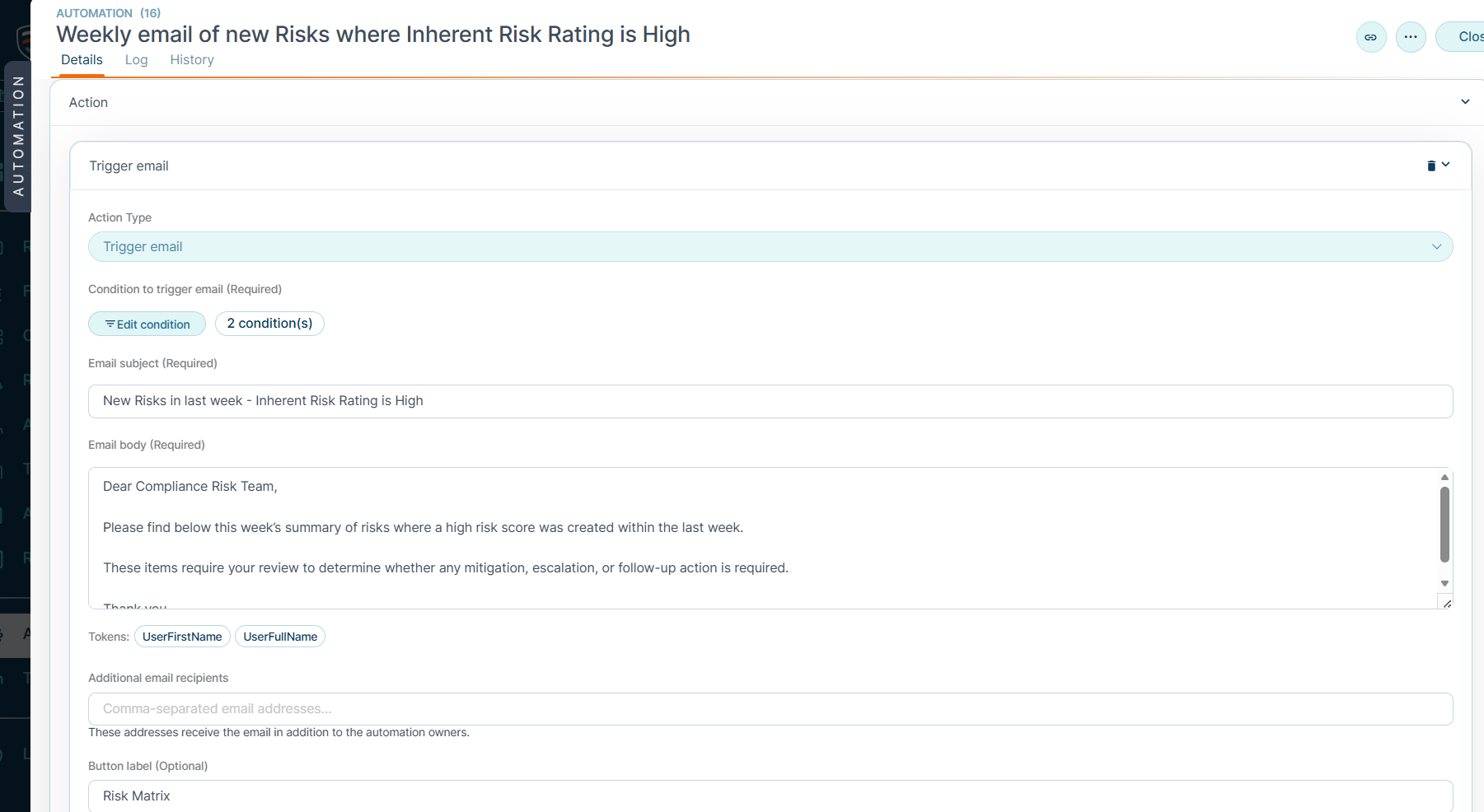
Automations - Specify conditions to trigger notification emails
- New "Trigger email" Automation action. It is now possible to send a notification automatically when a condition, defined as an MI v2 query (so highly flexible), is met. The email subject and body are customisable, with an optional button label and link. A common use is reminding people a set number of days before a due date.
- New "Email data" Automation action. Send a snapshot of a data table on a chosen frequency, either as a CSV attachment or as a table within the email (up to 50 rows and 5 columns when included inline). An option lets you skip sending when the query returns no data.
MI report and dashboard sharing (Third Party Sharing)
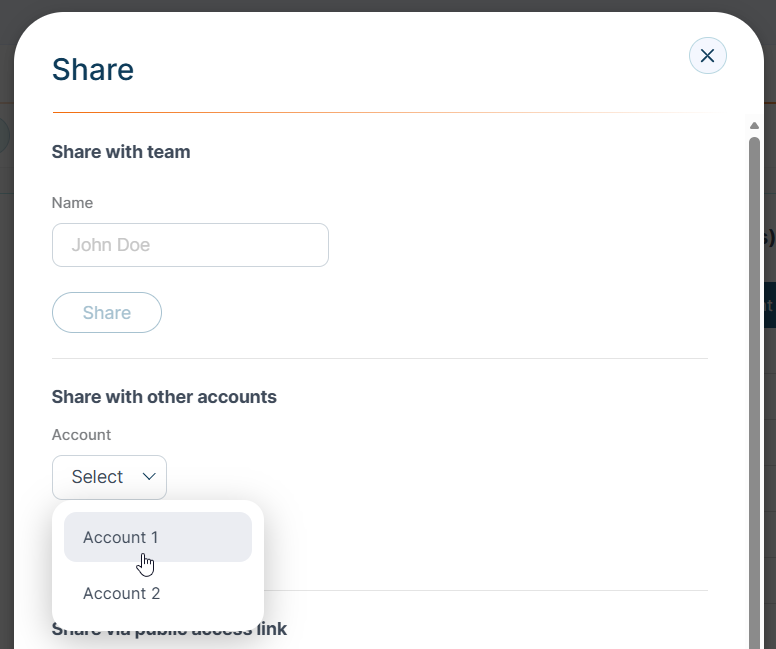
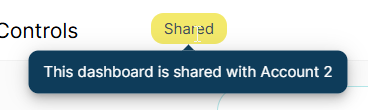
- Share an MI Dashboard or MI Report with a Recipient account. Master accounts can now share MI Dashboards and MI Reports with Recipient accounts. The Recipient sees the shared visualisations rendered against the master's data, from a new "Share with other accounts" section in the sharing dialog. Current shares are listed and can be removed inline.
- Shared visualisations are read-only for the Recipient. Shared MI Cards appear on the Recipient side without Edit, Clone or Delete actions, so the chart is useful (but the underlying configuration is protected).
- Build reports that mix shared and local cards. A Recipient can create or edit a Dashboard or Report that combines shared cards (from one or more Master accounts) with their own local cards, and can remove shared cards they no longer need.
- Shared reports are locked by default on the Master side. When a report has at least one Recipient share, editing controls are hidden behind a Lock / Unlock toolbar button. Unlocking shows a confirmation naming the Recipient accounts that depend on the report; the unlock lasts for the browser session only and re-locks with a single click. This prevents accidental changes to a visualisation others rely on.
- Recipients are emailed when a report is shared or unshared. When a report or dashboard is shared or unshared, an email is sent to the Recipient-side users who hold the relevant permission, with the report name and a link to open it. The notification can be turned off.
- New MI sharing Permissions (opt-in). MI report and dashboard sharing is controlled by new Permissions.
- On the Master side, Manage MI sharing with others allows a User to share MI Dashboards and Reports and to unlock a shared report for editing.
- On the Recipient side, Manage MI sharing with us allows a User to add and remove shared cards on their own reports, without being able to change the shared master copy. New viewing Permission Scopes distinguish View shared MI (with selection of the permitted Master accounts) from View non-shared MI; Users cannot see shared cards or shared reports without the shared-MI Permission.
- To use MI report and dashboard sharing, administrators must grant the new MI sharing Permissions (above) to the relevant Master- and Recipient-side Users and configure which accounts may share. Until then, existing reports and dashboards are unaffected.To use MI report and dashboard sharing, administrators must grant the new MI sharing Permissions (above) to the relevant Master- and Recipient-side Users and configure which accounts may share. Until then, existing reports and dashboards are unaffected.
- Archive MI Reports and Dashboards. Reports and dashboards can now be archived and unarchived, with a listing toggle to show archived items. For a shared report, archiving is limited to users with the manage-shared-MI permission; for an unshared report, to users with View & Edit Report.
- Report on who an Event or Event Design is shared with. MIv2 can now report on the Recipients that an Event or Event Design is shared with, as snapshotted attributes. This helps firms that provide oversight reporting to their own clients evidence where each Event has been shared and with which Recipient. Available across all Events and each Event Type.
Supplier Oversight
- Copy multiple-selection user fields into Firms and launch workflows. The field-copy capability now supports the multiple-selection users field. It can be pre-populated during a launch stage workflow (including via the launch-stage-workflow Automation action) and passed from a stage workflow through to Firms.
- Where the target field does not allow the source's user type e.g. for example the source holds external users but the target allows internal users only, then those values are not copied, and the skip is recorded. When both sides allow external users, only external users belonging to that Firm are copied.
Improvements
- Optional Transition comments. Transition comments on a Staged Workflow Type can now be configured as Required, Optional or Disabled, and configured per Transition where needed. The default remains enabled and optional, so behaviour is unchanged unless an administrator changes it.
- Consolidated Files grid across workflows and Firms. A new Files grid is available for each workflow type (Issues, Solutions, Forms and other stage workflows) and for Firms. It brings together record files and custom-field files for the type into a single searchable list, ordered by upload date. Search across file name, reference, linked workflow item, uploaded-by, upload date, notes and file type; download an individual file; click through to the record card or the item card; or export the list as a CSV.
- Reassign an Event from the Event card. Users with View & Edit Events can now reassign a visible Event directly from the read-only Event card via a Manage Events menu, rather than only from the Inbox - useful for reassigning from a filtered master grid and for reassigning Events belonging to blocked Users.
Fixes
- Resolved an issue in the Client Assurance Portal where, for a Control shared across more than one Recipient account, the master related tasks list could display unrelated task names. Recipients now see only the correct task names.
- Resolved an issue where clicking a column on an MI chart with subjects grouped by response opened an empty drilldown table. The drilldown now returns the expected rows for the selected column.
In a Rush?
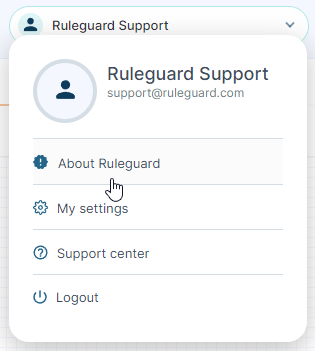
If you don’t have time to read our blog posts right away, you can access all release notes at any time by clicking the release version number in the Ruleguard Welcome menu (top right).
If you encounter any problems or have any questions about this update, please let us know at support@ruleguard.com or contact your Customer Success Manager.
Ruleguard Team